第260章:練習:Valibot で作る厳格な設定フォーム
今回は「設定画面っぽいやつ」を本気で作ります!📋 ポイントは Valibot で“型も中身も”ガチガチに守る こと💪 React Hook Form と合体して、「入力→検証→保存」まで一気にやるよ〜😊
できあがりイメージ 🎨
- 表示名(必須)
- テーマ(system / light / dark)
- 言語(ja / en)
- 1ページの表示件数(文字入力→numberに変換して検証!)
- 通知:ON/OFF(ONのときだけメール入力欄が出る📩)
- 開発者モード:ON/OFF(ONのときだけ API URL 入力欄が出る🧪)
全体の流れ(図)🗺️
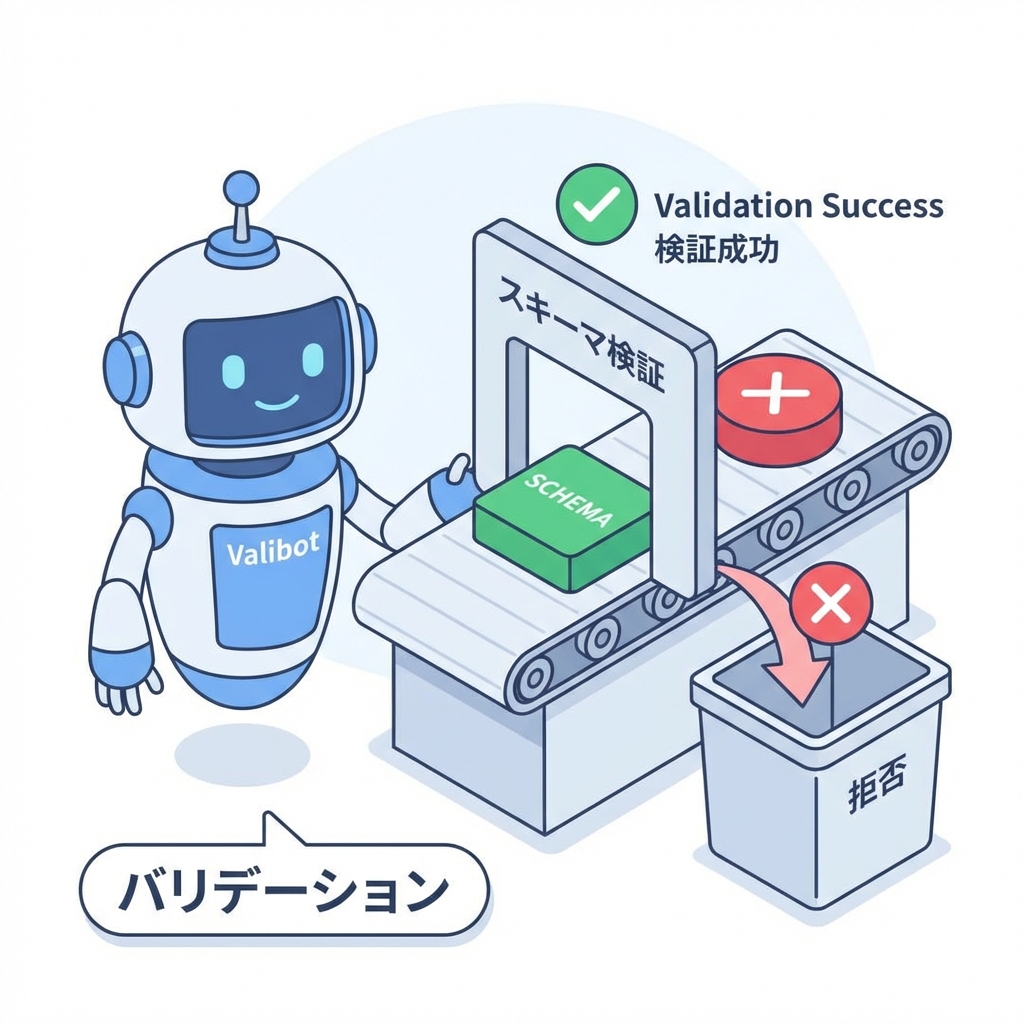
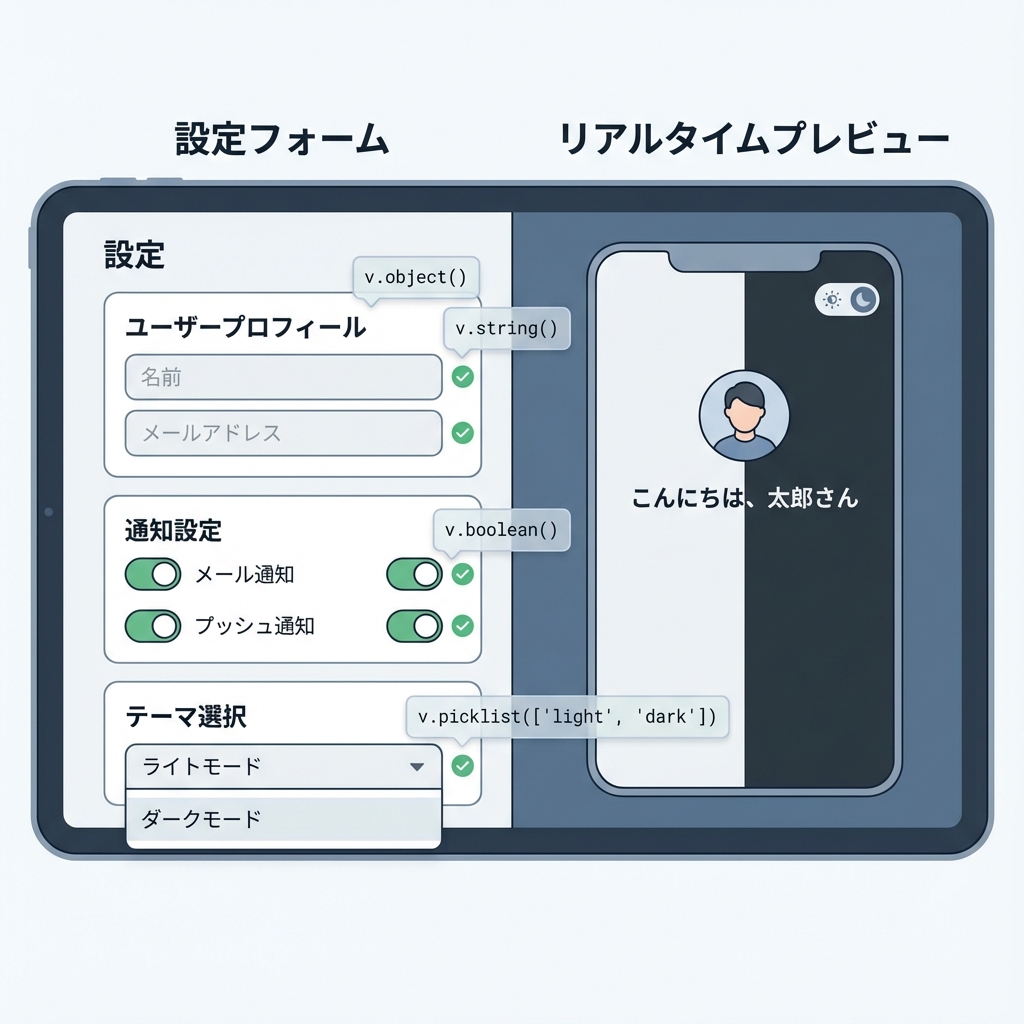
valibotResolver で React Hook Form と Valibot を接続するよ〜📌
1) まずはインストール 📦✨
PowerShell / ターミナルで👇
npm i react-hook-form valibot @hookform/resolvers
2) スキーマを作る(ガチガチ設定の心臓部❤️)🧠
src/schemas/settingsSchema.ts を作成👇
pipeで「trim→検証→変換」みたいに順番に並べられるのが Valibot の気持ちよさだよ🫶 (valibot.dev)toNumberは「文字列→number変換」をやってくれる!変換できない時はエラーにできるよ✨ (valibot.dev)checkで「通知ONならメール必須」みたいな 条件付きバリデーション が書けるよ👍 (valibot.dev)- さらに
strictObjectで 想定外のキーを拒否(地味に安全🔥) (valibot.dev)
// src/schemas/settingsSchema.ts
import * as v from "valibot";

const DisplayNameSchema = v.pipe(
  v.string("表示名は必須だよ〜🙂"),
  v.trim(),
  v.minLength(2, "表示名は2文字以上にしてね✨"),
  v.maxLength(20, "表示名は20文字までだよ〜😅")
);

const ThemeSchema = v.picklist(
  ["system", "light", "dark"],
  "テーマを選んでね🎨"
);

const LanguageSchema = v.picklist(["ja", "en"], "言語を選んでね🌍");

const ItemsPerPageSchema = v.pipe(
  v.string("表示件数は必須だよ〜📌"),
  v.trim(),
  v.toNumber("数字で入れてね🔢"),
  v.integer("整数(1,2,3…)だけだよ〜🙏"),
  v.minValue(5, "最低でも5件は表示しよっ🙂"),
  v.maxValue(100, "多くても100件までにしてね😵")
);

const EmailSchema = v.pipe(
  v.string("メール入れてね📩"),
  v.trim(),
  v.toLowerCase(),
  v.email("メールの形がちょっと変かも?😳")
);

const UrlSchema = v.pipe(
  v.string("URLを入れてね🔗"),
  v.trim(),
  v.url("URLの形が変だよ〜😵")
);

// 入力(フォーム)は string が多いけど、出力は number に変換される感じを狙うよ✨
export const SettingsSchema = v.pipe(
  v.strictObject({
    account: v.strictObject({
      displayName: DisplayNameSchema,
    }),
    ui: v.strictObject({
      theme: ThemeSchema,
      language: LanguageSchema,
      itemsPerPage: ItemsPerPageSchema, // string -> number に変換される
    }),
    notifications: v.strictObject({
      enabled: v.boolean(),
      email: v.optional(EmailSchema), // 空文字は後で undefined に変換する(フォーム側で)
    }),
    developer: v.strictObject({
      devMode: v.boolean(),
      apiEndpoint: v.optional(UrlSchema), // 空文字は後で undefined に変換する(フォーム側で)
    }),
  }),
  // 条件付きチェック:通知ONなら email 必須!📩
  v.check(
    (s) => !s.notifications.enabled || !!s.notifications.email,
    "通知をONにするならメールアドレスも入れてね📩✨"
  ),
  // 条件付きチェック:開発者モードONなら API URL 必須!🧪
  v.check(
    (s) => !s.developer.devMode || !!s.developer.apiEndpoint,
    "開発者モードをONにするなら API URL も必要だよ🧪🔗"
  )
);

// 入力型(フォームの生データ)
export type SettingsInput = v.InferInput<typeof SettingsSchema>;

// 出力型(変換後のデータ:itemsPerPage が number になる!)
export type SettingsOutput = v.InferOutput<typeof SettingsSchema>;
3) フォーム本体を作る 🧾✨
src/components/SettingsForm.tsx を作成👇
ここで valibotResolver を使って接続するよ〜🔌
// src/components/SettingsForm.tsx
import * as v from "valibot";
import { useForm } from "react-hook-form";
import { valibotResolver } from "@hookform/resolvers/valibot";

import { SettingsSchema, type SettingsInput, type SettingsOutput } from "../schemas/settingsSchema";
import styles from "./SettingsForm.module.css";

export function SettingsForm() {
  const {
    register,
    handleSubmit,
    watch,
    formState: { errors, isSubmitting },
  } = useForm<SettingsInput>({
    resolver: valibotResolver(SettingsSchema),
    mode: "onBlur",
    defaultValues: {
      account: { displayName: "" },
      ui: { theme: "system", language: "ja", itemsPerPage: "20" },
      notifications: { enabled: false, email: undefined },
      developer: { devMode: false, apiEndpoint: undefined },
    },
  });

  const notificationsEnabled = watch("notifications.enabled");
  const devMode = watch("developer.devMode");

  const onSubmit = async (values: SettingsInput) => {
    // handleSubmit が通ってる時点でバリデーションはOK✨
    // でも「変換後の型(SettingsOutput)」で扱いたいので parse して確定させるよ🧠
    const parsed: SettingsOutput = v.parse(SettingsSchema, values);

    localStorage.setItem("appSettings", JSON.stringify(parsed, null, 2));
    alert("保存したよ〜✨🎉");
  };

  return (
    <div className={styles.wrap}>
      <h1 className={styles.title}>設定フォーム ⚙️✨</h1>

      <form className={styles.form} onSubmit={handleSubmit(onSubmit)}>
        {/* 表示名 */}
        <div className={styles.field}>
          <label>表示名</label>
          <input
            placeholder="例)あきちゃん"
            {...register("account.displayName")}
          />
          {errors.account?.displayName?.message && (
            <p className={styles.error}>{errors.account.displayName.message}</p>
          )}
        </div>

        {/* UI設定 */}
        <div className={styles.field}>
          <label>テーマ 🎨</label>
          <select {...register("ui.theme")}>
            <option value="system">system(端末に合わせる)</option>
            <option value="light">light</option>
            <option value="dark">dark</option>
          </select>
          {errors.ui?.theme?.message && (
            <p className={styles.error}>{errors.ui.theme.message}</p>
          )}
        </div>

        <div className={styles.field}>
          <label>言語 🌍</label>
          <select {...register("ui.language")}>
            <option value="ja">日本語</option>
            <option value="en">English</option>
          </select>
          {errors.ui?.language?.message && (
            <p className={styles.error}>{errors.ui.language.message}</p>
          )}
        </div>

        <div className={styles.field}>
          <label>1ページの表示件数 🔢</label>
          <input
            inputMode="numeric"
            placeholder="例)20"
            {...register("ui.itemsPerPage")}
          />
          <p className={styles.helper}>
            入力は文字列だけど、Valibotで number に変換して保存するよ✨
          </p>
          {errors.ui?.itemsPerPage?.message && (
            <p className={styles.error}>{errors.ui.itemsPerPage.message}</p>
          )}
        </div>

        {/* 通知 */}
        <div className={styles.field}>
          <label className={styles.row}>
            <input type="checkbox" {...register("notifications.enabled")} />
            通知をONにする 📩
          </label>
          {errors.notifications?.enabled?.message && (
            <p className={styles.error}>{errors.notifications.enabled.message}</p>
          )}
        </div>

        {notificationsEnabled && (
          <div className={styles.field}>
            <label>通知用メール 📩</label>
            <input
              placeholder="example@mail.com"
              {...register("notifications.email", {
                // optional は undefined を許すけど、フォームの空欄は "" になりがち🥲
                // なので空欄は undefined に変換してあげるよ✨
                setValueAs: (val) => (val === "" ? undefined : val),
              })}
            />
            {errors.notifications?.email?.message && (
              <p className={styles.error}>{errors.notifications.email.message}</p>
            )}
          </div>
        )}

        {/* 開発者 */}
        <div className={styles.field}>
          <label className={styles.row}>
            <input type="checkbox" {...register("developer.devMode")} />
            開発者モード 🧪
          </label>
          {errors.developer?.devMode?.message && (
            <p className={styles.error}>{errors.developer.devMode.message}</p>
          )}
        </div>

        {devMode && (
          <div className={styles.field}>
            <label>API エンドポイント 🔗</label>
            <input
              placeholder="https://api.example.com"
              {...register("developer.apiEndpoint", {
                setValueAs: (val) => (val === "" ? undefined : val),
              })}
            />
            {errors.developer?.apiEndpoint?.message && (
              <p className={styles.error}>{errors.developer.apiEndpoint.message}</p>
            )}
          </div>
        )}

        <button className={styles.button} disabled={isSubmitting}>
          {isSubmitting ? "保存中…⏳" : "保存する 💾✨"}
        </button>
      </form>
    </div>
  );
}
4) CSS(最低限でOK👌)🎀
src/components/SettingsForm.module.css
.wrap {
  max-width: 620px;
  margin: 24px auto;
  padding: 16px;
}

.title {
  font-size: 22px;
  margin-bottom: 12px;
}

.form {
  border: 1px solid #ddd;
  border-radius: 14px;
  padding: 16px;
  display: grid;
  gap: 12px;
}

.field {
  display: grid;
  gap: 6px;
}

.row {
  display: flex;
  align-items: center;
  gap: 8px;
}

input,
select {
  border: 1px solid #ccc;
  border-radius: 10px;
  padding: 10px 12px;
}

.helper {
  font-size: 12px;
  opacity: 0.75;
}

.error {
  font-size: 13px;
  color: #c00;
}

.button {
  border: none;
  border-radius: 12px;
  padding: 12px 14px;
  cursor: pointer;
}
5) 表示する(App.tsx)🚀
src/App.tsx
import { SettingsForm } from "./components/SettingsForm";

export default function App() {
  return <SettingsForm />;
}
変換のイメージ(itemsPerPage)🔁✨
「入力は '20'(string)なのに、保存は 20(number)になる」って気持ちよさがこれ!😆
toNumber は「文字列を number に変換できないときエラーにする」っていうのが公式の説明だよ✨ (valibot.dev)
動作チェック ✅🎮
- 表示名を1文字にしてみる → エラー出る🙂
- 表示件数を
abcにする → 「数字で入れてね🔢」になる😆 - 通知ONにしてメール空欄 → 「通知ONならメール必須📩」になる
- 開発者モードONにしてURL空欄 → 「API URL 必須🔗」になる
保存したら DevTools で👇見てみてね(Application → Local Storage)
- key:
appSettings
おかわり課題(余裕あったら)🍰✨
- ✅ 「言語が en のときは表示名は英数字だけ」みたいなルールを
checkで追加してみる🧠 (valibot.dev) - ✅
strictObjectを全部のネストにも使って、さらにガードを固くしてみる🛡️ (valibot.dev) - ✅ 保存後に「保存しました🎉」みたいなミニ通知(簡易Toast)を自作してみる🔔
必要なら、次の第261章(Biome)に行く前に、このフォームを UIライブラリ(shadcn/ui)で見た目プロっぽくする版 も作れるよ😎✨